Live
Going live does not need ffmpeg. The decoder connects to the camera's stream itself and decodes the DataBorder as it arrives, about one to two seconds behind the camera. The decoded data is always stored. The video is kept only in a rolling buffer, unless you save a clip from it.
Connect
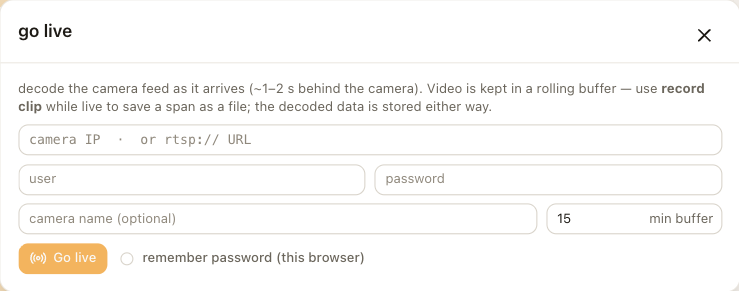
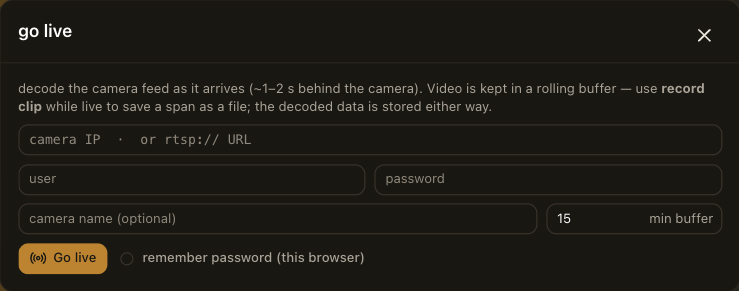
- Choose live in the header.
- Enter the camera's address, and its user name and password if it requires them. As with recording, a bare address is expanded to the Axis default stream.
- Optionally, name the camera and set the buffer length. The default keeps the last 15 minutes of video, which is about 450 MB at 4 Mbit/s. Older video is dropped. Decoded data is never dropped.
- Choose Go live.
Live decoding needs the camera's 1920 × 1080 H.264 stream. A stream at another resolution, or in H.265, is refused with a message that says so.
The live view
A red LIVE badge with the elapsed time appears under the header, together with the number of updates decoded and the size of the buffer. Next to it, the record matrix shows one cell per record in the DataBorder. A cell is filled once the record's value has arrived, hollow while the decoder waits for the camera's next full snapshot, and marked when the controller has no value for that record.
The lanes fill from the right as values arrive. The timeline follows the live edge while follow is on. Pan or zoom to look back, and choose follow again to return to the edge. The video panel has a live tab that plays the stream and a review tab for the buffer.
Save a clip from the buffer
To save the span around an event as a file:
- Pick a pre-roll, from none to 60 seconds, so that the lead-up is included.
- Choose record clip. The clip starts at the pre-roll point, and the buffer stops dropping that video.
- Choose save clip when the event is over.
The clip is written without re-encoding into the decoder's clips folder. It is named after the camera and the time, ends in _live, and is listed under exports. It decodes like any other clip.
Stop
Choose stop live and confirm. The decoder then finalizes the session. Everything it decoded live is rewritten into the database in the same form as a clip ingested from a file, and it appears as one clip on the camera's timeline. Buffered video that was not saved as a clip is eventually dropped.
Live signal view
The signal view streams while you are live. It shows the contrast of the ring blocks and the corrections the decoder is making as the stream arrives. This shows whether the encoder settings or the network path are reducing the ring's margin before decoding fails.