Recording
Recording needs ffmpeg to be installed. Without it, the record button is disabled.
Start recording
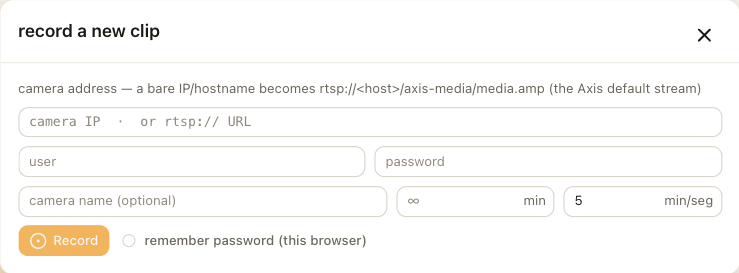
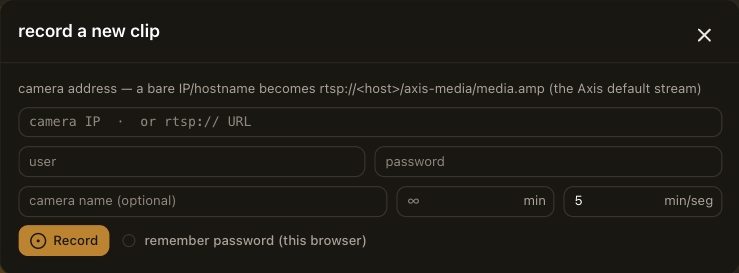
- Choose record in the header. Alternatively, choose the record button on a camera's badge in the clips library to start with that camera's address filled in.
- Enter the camera's address. A bare IP address or hostname is expanded to the Axis default stream,
rtsp://<host>/axis-media/media.amp. Enter a fullrtsp://address to use a different profile. Make sure the profile is the 1080p one that carries the DataBorder. See Recording for the camera side. - Enter the camera's user name and password if it requires them. The address and user name are remembered in this browser. The password is remembered only if you tick remember password, and it is then stored in the browser without encryption.
- Optionally, give the camera a name, set an auto-stop limit in minutes, and change the segment length. The default segment length is five minutes.
- Choose start.
The stream is written to disk as it is received, without re-encoding, so the DataBorder is exactly as the camera drew it. Each segment is decoded as soon as it is closed, so the timeline grows while the recording runs. The dialog shows a REC badge, the elapsed time, the number of bytes written, and the number of segments decoded. You can close the dialog and the recording continues.
Segments
The recording is split into segments so that:
- a crash loses only the open segment,
- each finished segment decodes while the next one records,
- a dropped stream shows as a gap in one segment rather than a lost session.
Stop
Choose stop. The open segment is closed and decoded, and the session ends. If you set an auto-stop limit, the recording ends on its own and the last segments are decoded afterwards.
Each segment becomes a clip on the camera's timeline. Select the segments together in the clips library to view the whole session.
If the stream drops
If the camera or the network drops the connection, the recording finishes by itself with the segments it has. Start it again to continue.
Recording compared with live
Recording keeps everything. Live keeps a rolling buffer, needs no ffmpeg, and lets you save a clip from the buffer.