Overlay
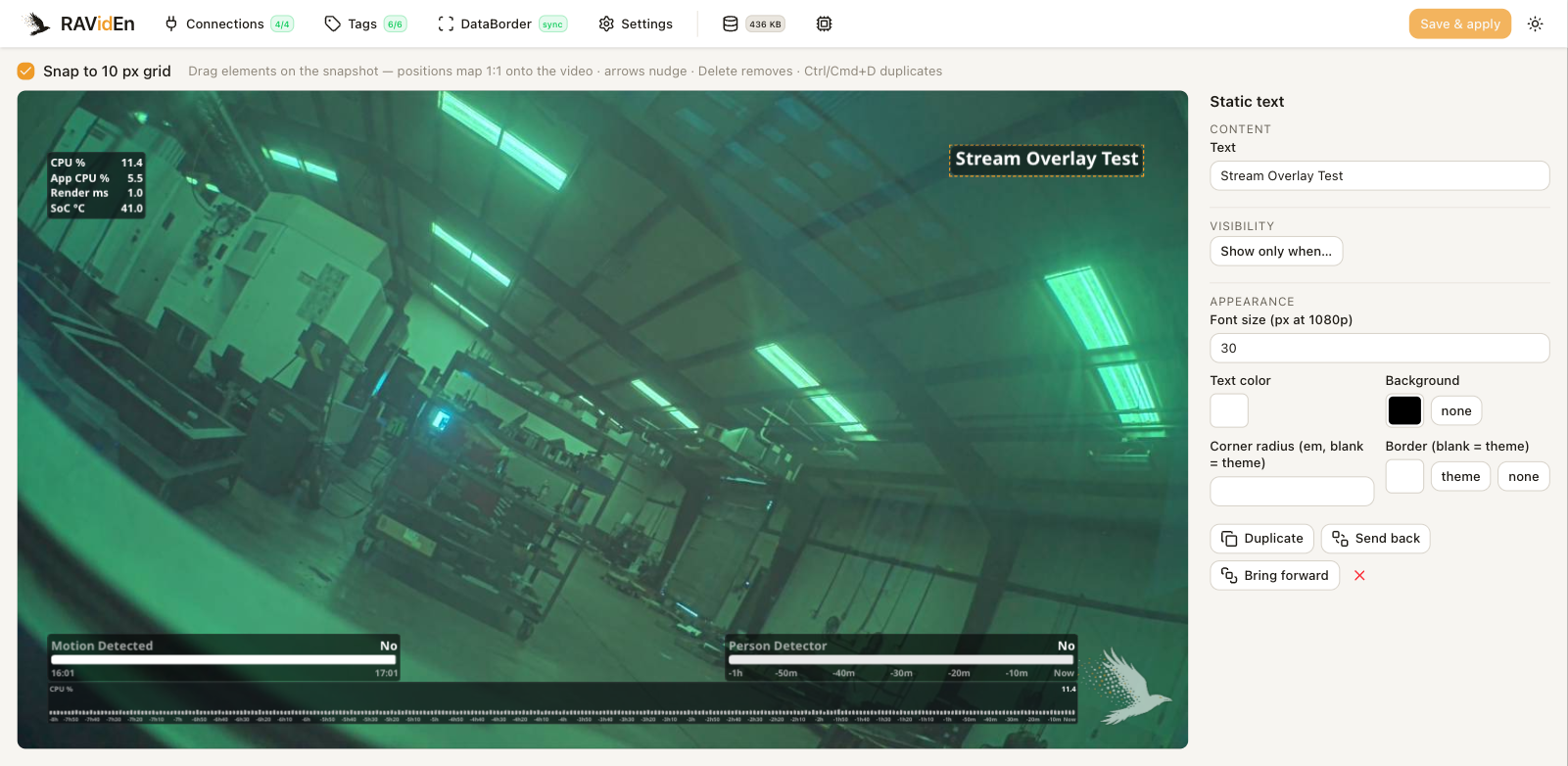
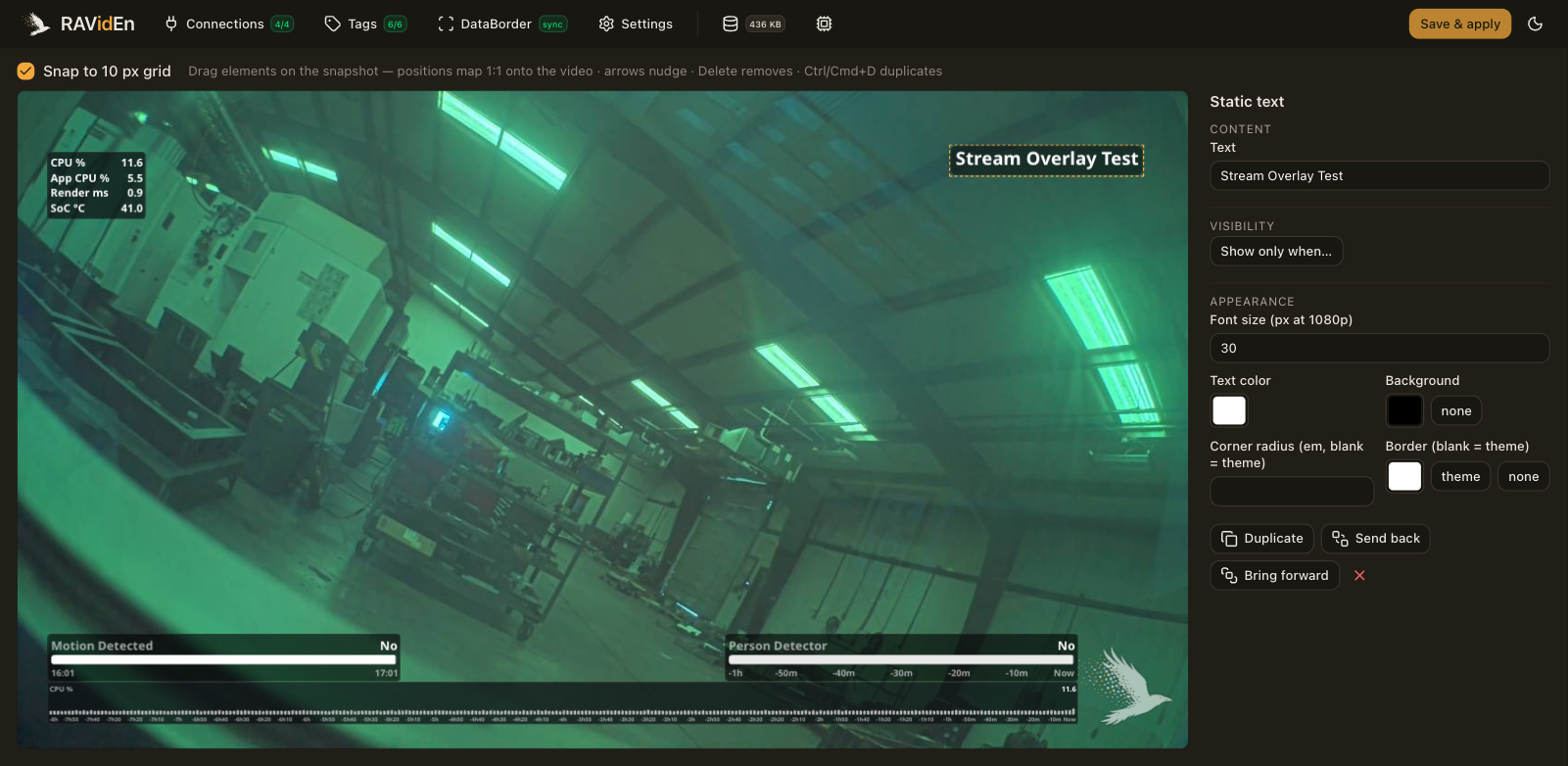
The overlay editor is the main page of the RAVidEn interface. It shows a snapshot from the camera with your elements drawn on top. The editor uses the same font and the same measurements as the camera, so text and boxes land in the video where they appear in the editor. Placement in the video can still differ slightly from the preview, so check the stream after you change a layout.
The snapshot is a still image. It does not play video.
Elements
Choose Add and pick an element. The elements come in four groups.
Text and values
| Element | Description |
|---|---|
| Static text | Displays a fixed label. |
| Tag value | Displays one tag's current value, with an optional prefix and suffix. Color rules can change the text color depending on the value, and a state tag is shown in its state color. |
| Indicator | Displays a colored lamp driven by rules on a tag, for example green above a value and red below it. |
| Tag table | Displays a list of up to 20 tags with their values, one per row. |
Charts of measurements
| Element | Description |
|---|---|
| Tick chart | Draws the value over a window of time as a line, with an optional time axis. |
| Gauge | Shows the current value against a range, as a horizontal bar, a vertical bar or an arc. |
| Metric tile | Shows the current value, the change over the window, and a sparkline. |
State charts, for state tags
| Element | Description |
|---|---|
| Current state | Shows the state's label and color in large type. |
| State strip | Shows the sequence of states over the window as a colored strip, horizontal or vertical. |
| Donut | Shows the share of the window spent in each state, with the productive share in the middle. |
| State table | Lists the time, share, count and average dwell for each state over the window. |
| Hourly bars | Draws one bar per hour, split by state. |
| Availability | An arc gauge preset that shows the productive share of the window. |
Robots, for ABB connections. These elements need no tags. See ABB robot.
| Element | Description |
|---|---|
| Robot panel | Shows the robot's state, operating mode and speed as chips. The full version adds the running routine, the tool, and the latest alarm. |
| Pose figure | Draws a schematic of the arm, posed from the live joint positions. |
Chart and state elements draw over a window. A rolling window covers the last 15 minutes, hour, 8 hours, day or week. An anchored window covers this hour, this shift or today, and fills in as the period goes on. Shift start times are set under Settings. See History and charts for what the camera keeps.
Placing and sizing
- Drag an element to move it. Turn on Snap to grid to align elements to a 10-pixel grid. Guide lines appear when an edge or a center lines up with another element.
- Drag the handle on charts and tables to resize them. Tables and robot panels set their own height from their rows, so you only set their width.
- The arrow keys nudge the selected element by one pixel, or by ten pixels with Shift held. Delete removes the element. Ctrl+D or Cmd+D duplicates it.
- Send back and Bring forward change the drawing order where elements overlap. A layout reads better when they do not, so use these to fix an overlap rather than to design around one.
Positions are stored relative to the frame, so one layout serves every stream resolution. Font sizes are given for 1080p and scale with the stream.
Appearance
Settings → Theme sets the defaults for every element's box: the background color and its transparency, the text color, the corner radius, and the border. Any element can override its radius and border, or turn its box off entirely.
A RAVidEn watermark is drawn in one corner by default. Settings → Overlay chooses the corner, the size and the opacity, or turns the watermark off.
Showing an element only sometimes
Every element can have a visibility rule, which shows the element only while a tag compares in a certain way with a value. This is useful for an alarm banner that appears only while an alarm bit is set, or for a different layout for each operating mode. In the editor, elements hidden by their rule are drawn dimmed so that you can still select them.
Streams
The overlay is drawn on every H.264 and H.265 stream the camera produces, at every resolution. JPEG snapshots and MJPEG streams are left without it. The redraw rate is limited to five frames per second by default and can be changed under Settings. A lower rate saves camera CPU. See Performance.