Timeline
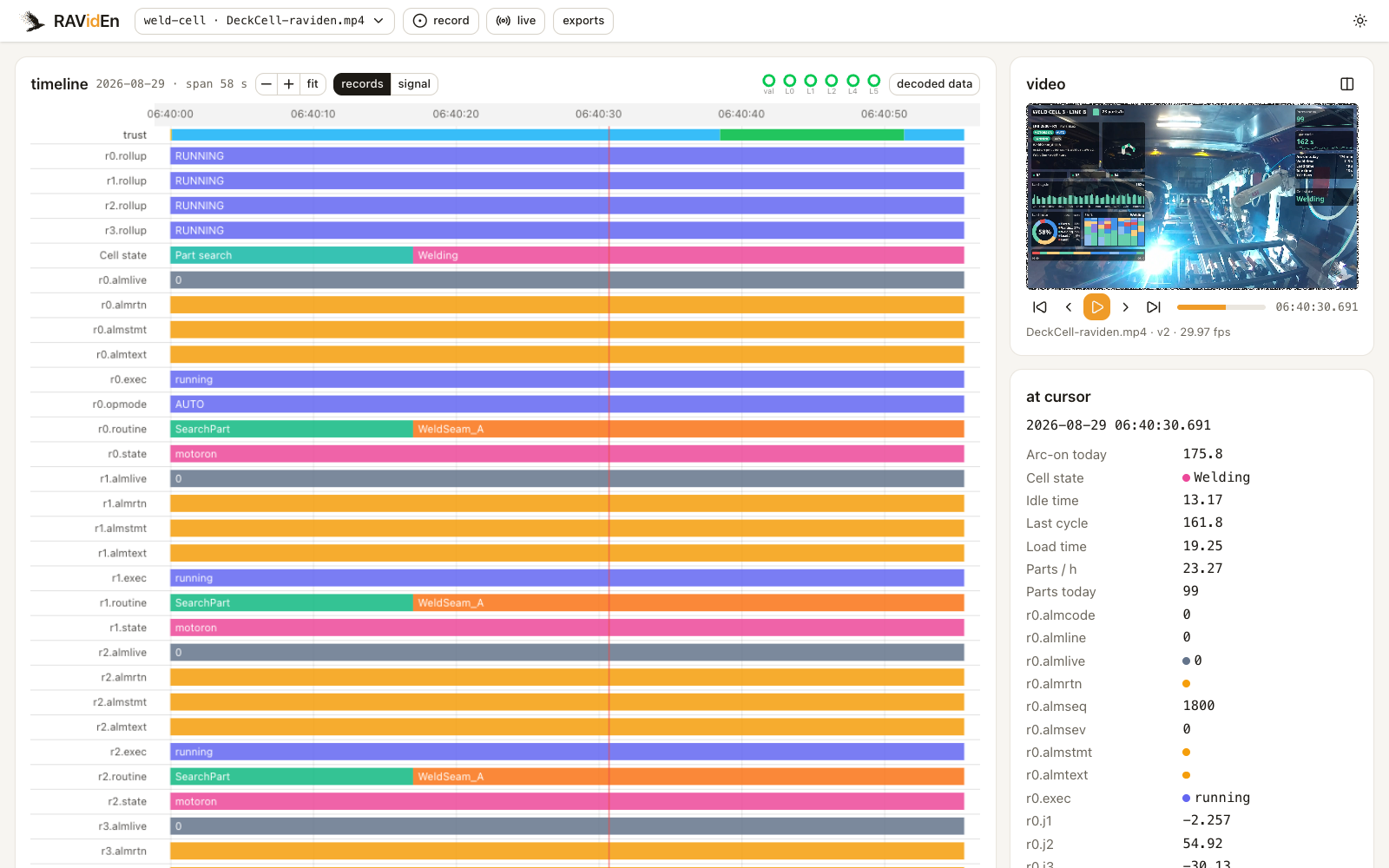
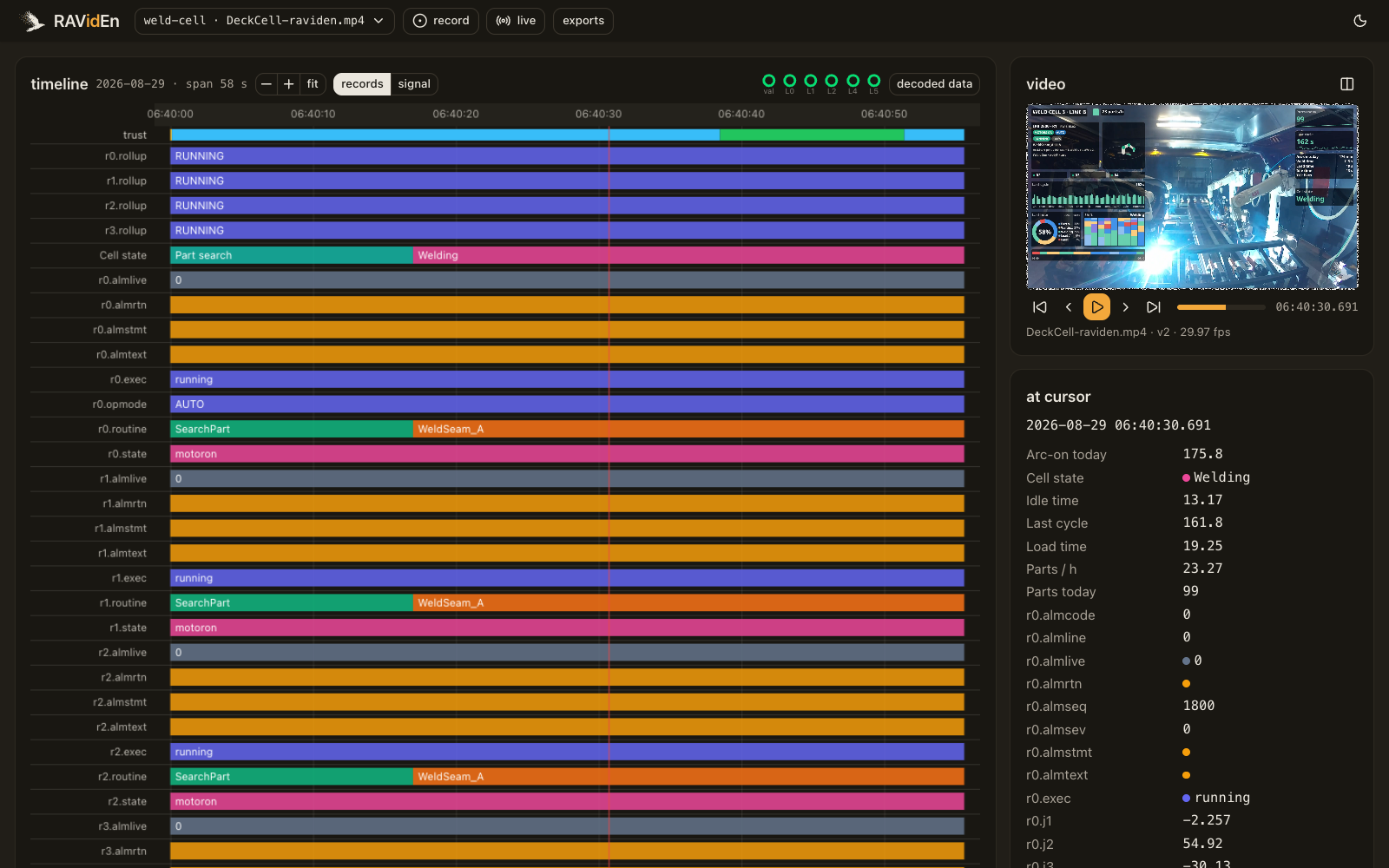
The timeline is the decoder's main view. Time runs from left to right across the selected clips, or across the live window.
The trust band
The strip across the top says, for every moment, how far the data can be trusted.
| Band | Meaning |
|---|---|
| signed | A valid signature from the camera covers this span. The values are exactly what the camera wrote. |
| chained | The updates link to each other correctly, but no signature covers them yet. This is normal for the last seconds of a live stream, or for the tail of a clip that was cut before the next signature. |
| decoded | Values were recovered, but the chain could not be verified back to a known point. This is typical at the very start of a clip, or just after a gap. |
| tampered | An update does not link to the one before it. The frames were altered, spliced, or re-ordered at exactly this point. |
| gap | Updates are missing. Either the clip was cut here, or frames were dropped. |
A clip that comes straight from the camera or the recorder should be signed from end to end. Check anything else before relying on the values. See Verification.
Lanes
Below the trust band there is one lane per record, labeled with the record's name from the DataBorder. State records come first, followed by numbers.
- State tags are shown as colored spans with their labels.
- Numbers are shown as traces. When you zoom out, a lane shows the range the value covered within each pixel.
- Strings are shown as the text that was live, and the text changes where the value changed.
The cursor
Drag on the lanes to place the cursor. Two things follow it.
- The video panel shows the frame under the cursor. Its controls step one second or one frame in either direction, and play. When several clips are selected, the transport bar runs across all of them. Playing the video moves the cursor.
- The at cursor panel lists every record's value at that moment. Click a record to open its detail, which shows every observed change with the time it was held, the runs the camera carried from before the clip, and the record's full history if the clip carried it.
Zoom and navigation
| Gesture | Effect |
|---|---|
| Drag on the lanes | Moves the cursor. |
| Drag on the time ruler | Selects a range, for extracting a clip. |
| Scroll | Pans. |
| Ctrl or ⌘ with scroll, or pinch | Zooms around the pointer. |
| Shift-drag or middle-drag | Pans. |
| Double-click | Fits the whole selection. |
The minus, plus and fit buttons in the header do the same. The records and signal toggle switches to the signal view.
Layer indicators
The indicators at the top right, labeled val, L0, L1, L2, L4 and L5, show how much of the DataBorder the current selection has recovered. In order, they stand for the values, the record names, the camera's identity and state labels, the recent history, the strings, and the stored history. Hover over an indicator to see its count. The values always arrive first, and the other layers fill in as the clip gets longer. See Decoded data for what each layer holds.