DataBorder
The DataBorder is a ring of light and dark blocks that the camera draws around the edge of the picture. It carries the tag values inside the video itself, and over time it also carries everything else a decoder needs. Any recording of the stream carries the data with it, and the decoder reads it back. The DataBorder is patent pending.
Open DataBorder from the navigation bar.
Enabling
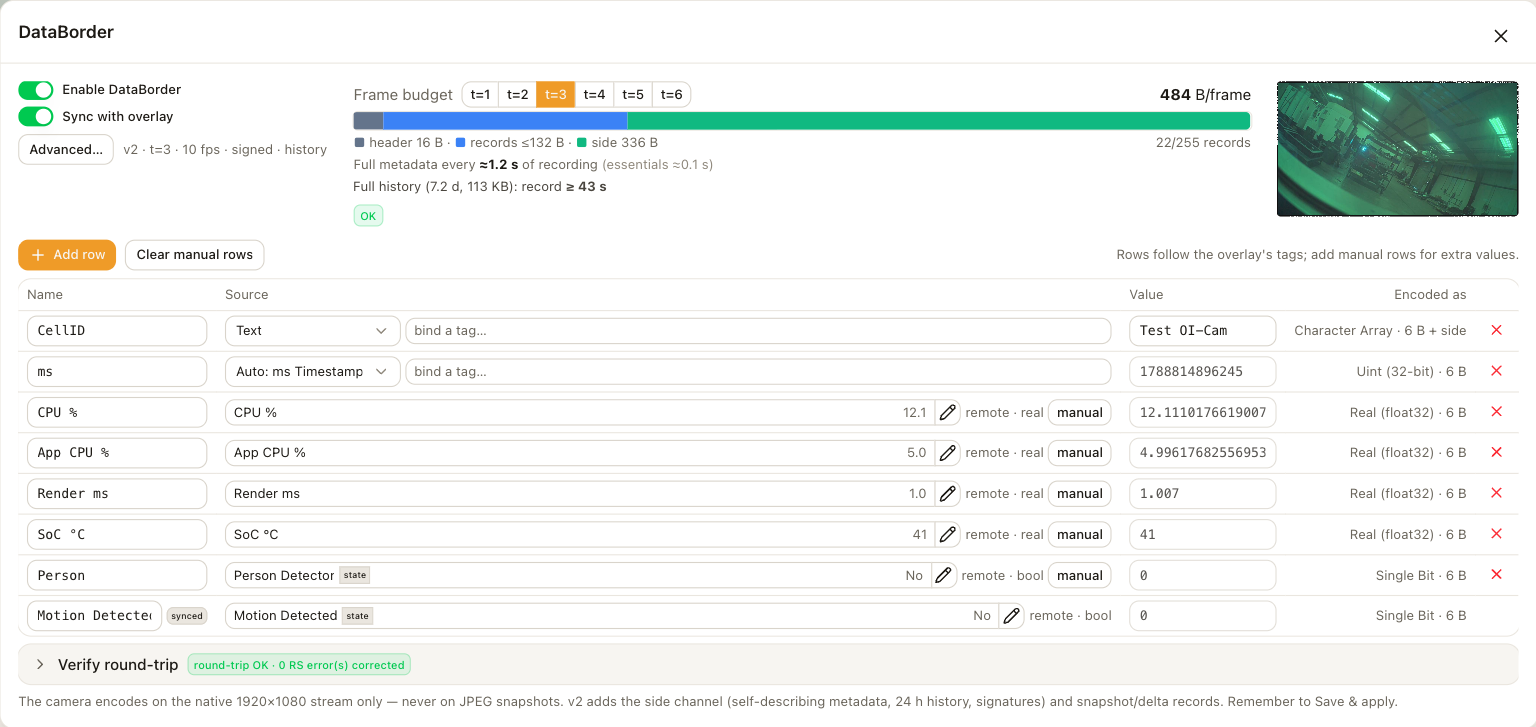
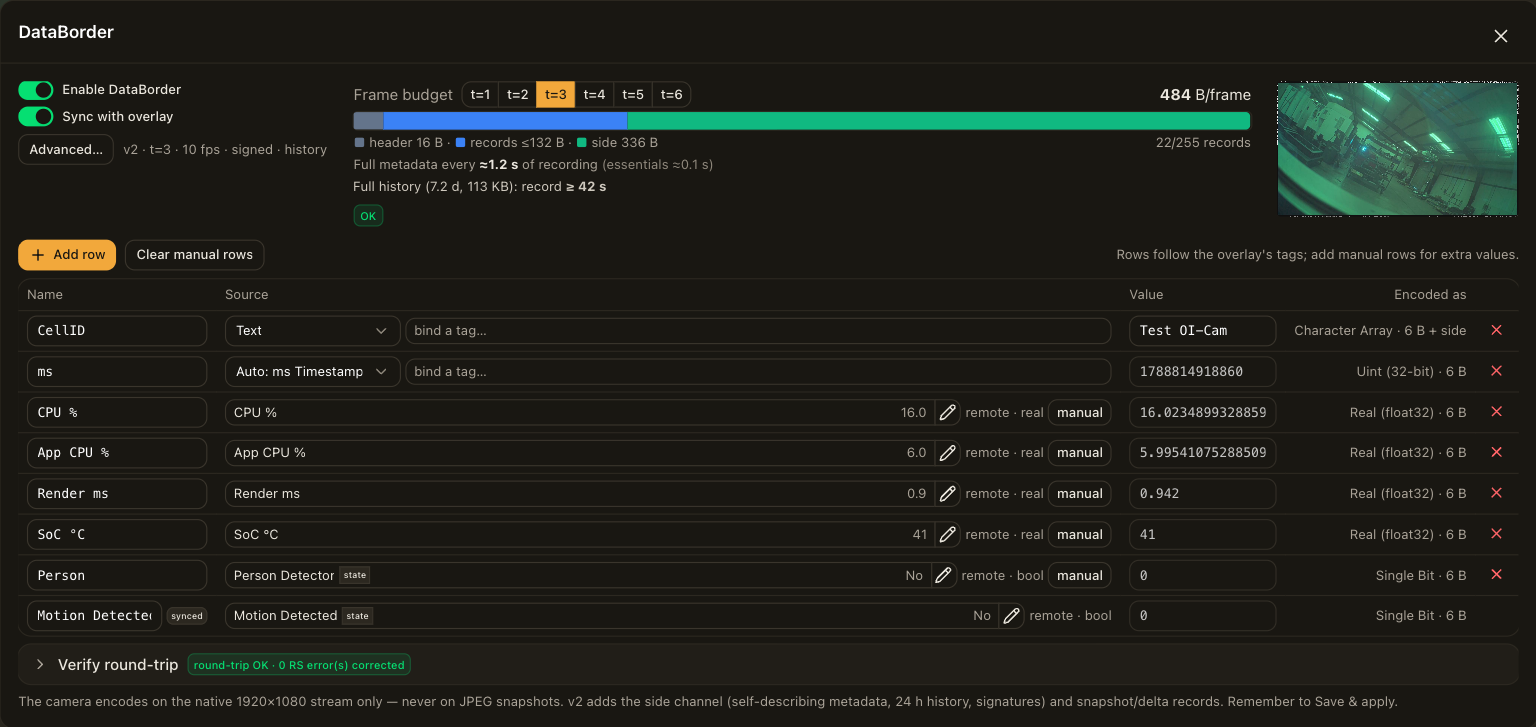
- Turn Enabled on.
- Leave Sync with overlay on. With this setting, every tag the overlay shows gets a record in the DataBorder automatically, and the record is removed when the overlay stops using the tag.
- Choose Save & apply.
The DataBorder appears on the camera's native 1920 × 1080 stream. Streams at other resolutions carry the overlay but not the DataBorder. See Recording for what this means for the recorder.
The panel draws the ring it would encode and decodes it again in the browser as a round-trip check, so you can see the encoding work before any video is recorded.
Thickness
The thickness is the number of blocks the ring is wide. A thicker ring carries more data per update and is more visible in the picture.
| Thickness | Capacity per update | Use |
|---|---|---|
| 1 | 173 bytes | Use it when you want the least visible ring and have only a handful of records. |
| 2 | 242 bytes | This is the default. It survives every recording tier that has been tested. |
| 3 | 484 bytes | Use it when you carry many records or robot data, or want the history to cycle faster. |
| 4 | 695 bytes | Use it for the same reasons as thickness 3. It uses the outer 16 pixels of the frame, so read the warning below. |
| 5 and 6 | 865 and 1,034 bytes | Use them only with recorders that keep 540p or better at 1 Mbit/s or more. They fail at 480p. |
The panel shows a live estimate of how long a clip needs to be to carry each part of the DataBorder at the chosen thickness.
Contents
Each update carries the values that changed since the last one. Every couple of seconds the camera sends a full snapshot of every record, so that a decoder which starts mid-stream catches up. The space left over carries a slice of a carousel that cycles through the record names, the camera's identity and state labels, recent history, strings and signatures.
The following options change what is carried.
| Option | Effect |
|---|---|
| Records | This is the list of what rides in the DataBorder. With sync on it mirrors the overlay. Add rows for tags you want in the data but not on the picture, or for fixed values such as a line name or a clock. |
| Pinned | A pinned record is included in every update, not only when it changes. Use it for records that must be readable from a single frame, such as a line name or a state. State tags added by sync are pinned automatically. |
| History in stream | This carries the last 24 hours of state runs for up to eight state tags, so that a decoded clip shows what the machine was doing before the clip began. It is on by default. |
| Full history in stream | This cycles the camera's full stored history through the DataBorder, newest first. A longer clip reconstructs more of it in the decoder. It is off by default because it uses the spare capacity continuously. |
| Profile | The history profile, which is the default, keeps the carousel cycling and fills the rest of each update with history. The snapshot profile makes every update fully self-describing, including the whole record dictionary, for archives that keep only keyframes. In the snapshot profile the dictionary must fit in one update, so it needs few records or a thick ring, and the save is refused if the dictionary does not fit. |
| Signing | This chains each update to the previous one and signs the chain with a key that is created on the camera. It is what allows the decoder to tell a genuine clip from an edited one. |
| Robots | For ABB connections, this adds standard records for state, mode, speed, routine and optionally joint positions, plus an alarm burst whenever a new alarm arrives. See ABB robot. |
Camera overlays
The camera's own overlays, meaning the clock and any text or image overlay set under the camera's Video → Overlays page, are drawn on top of RAVidEn. If one of them sits on the ring, its changing pixels corrupt the blocks under it. With the camera's default clock at the top left, this shows up at thickness 4 as unrecoverable frames.
Before relying on thickness 4 or more, move the camera's overlays inward or turn them off. Thickness 2 and 3 clear the default clock, but check anything you add later.
Records and tag names
A record's name is the tag's name, limited to the first 16 characters. Keep tag names distinct within those characters so that the decoder can tell them apart.
The signing key
The camera creates an Ed25519 signing key the first time RAVidEn starts and keeps it on the camera. The public half rides in the DataBorder. The camera also serves it at /local/raviden/ui/api/signing-key so that a fingerprint can be checked independently of the video. See Verification.