Tags
Open Tag library from the navigation bar. A tag is one value that the camera reads from a connection, or computes from other tags. Tags are what you place on the overlay and in the DataBorder.
Add tags by browsing
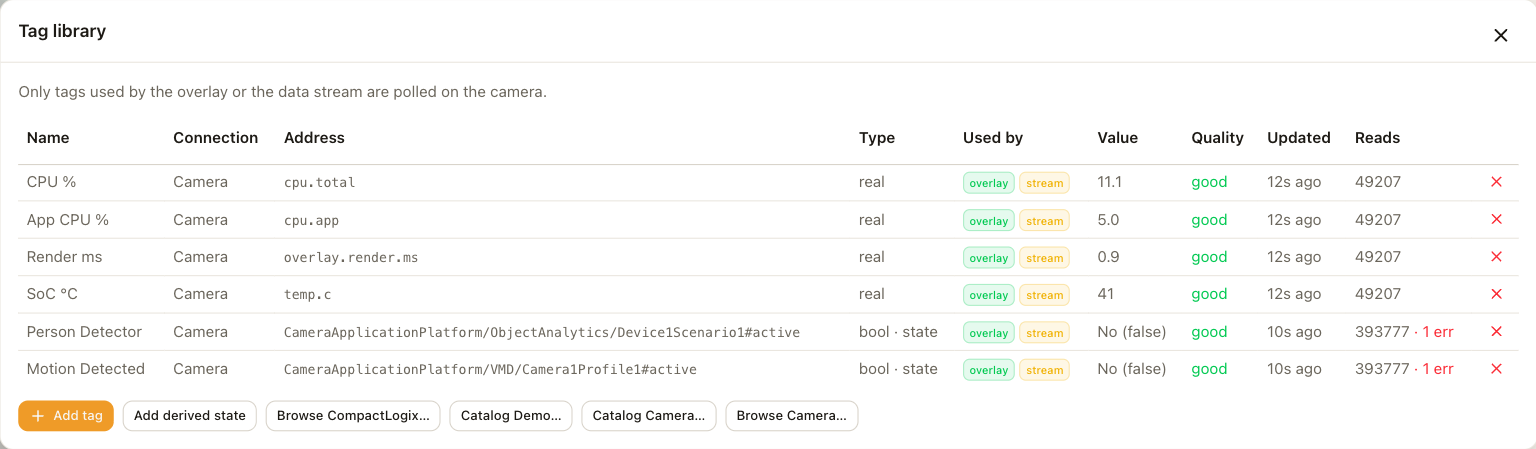
Choose Browse next to a Logix or camera-events connection, or Catalog next to a robot, CNC, SNMP, Modbus, demo or diagnostics connection. The list shows what the source offers: the controller's tags, the camera's event tree, or the source's signal catalog. Choose Add on each tag you want. Each source's page under Connections describes what it lists.
Add tags by hand
Choose Add tag and enter the address yourself. The address form depends on the source. Its page describes the form, for example the controller tag name for a Logix PLC. See Allen-Bradley.
Each tag has the following settings.
| Setting | Description |
|---|---|
| Name | The display name, up to 32 characters. The DataBorder uses it as the record name and keeps only the first 16 characters. |
| Data type | The type must match the controller's type. The choices are bool, the integer sizes, real, double, and string. |
| Scale | An optional factor and offset applied to the raw value before display. |
| Format | The format sets the number of decimals, the units, and an optional template such as {value} {units} or {name}: {value}. |
| Kind | A measurement is a number that the charts can plot. A state is a number that means a machine state. Changing the kind discards the tag's stored history. |
| History | Auto records the tag while it is used. On polls and records it always. Off keeps the live value only. See History and Stream. |
| Stream | Auto gives the tag a DataBorder record while the overlay shows it. On always adds a record. Off never does. See History and Stream. |
State tags
A state tag is a number whose values have meanings, for example 1 for Running, 2 for Blocked and 3 for Down. A state tag with a state map has three effects:
- Every element that shows the tag uses the label and the color instead of the number.
- The camera stores the tag's history as a log of transitions rather than as buckets.
- The state charts, and the tag's history in the DataBorder, become available.
For each value in the map, set a label, a color and optionally a category. Also set a default label and color for values that are not in the map.
Three ways fill the map faster:
- Add observed values lists every value the camera has seen for this tag in the last day and adds a row for each one.
- Learning mode keeps adding rows for new values as they appear, about once a minute, and assigns colors. Turn it on while the machine runs through its states, then turn it off and name the rows.
- Copy template and Paste map move a state map between tags, or out to a spreadsheet and back. Pasting merges by value. It updates existing rows, adds new ones and deletes nothing.
Categories
Categories group states across machines. The default categories are Productive, Idle, Blocked, Blocked upstream, Blocked downstream, Down and Maintenance, and you can change them under Settings. A state map can follow the global categories, define its own, or use none. Categories let a donut chart or an availability gauge show how much of the hour was productive without knowing each machine's own state names.
Derived states
Choose Add derived state to create a state that no single tag carries. A derived state is a list of rules. Each rule has the form "if this tag compares in this way with this value, then use this state". The camera evaluates the rules from top to bottom, and the first rule that matches wins.
An else state covers everything that does not match. Rules can use any measurement or state tag on any connection. The camera does not poll derived tags, which update whenever their inputs do.
A new derived state starts with two states, Running and Faulted, and a default state of Unknown. You can rename all of them.
Strings
A tag with the string data type shows its text on the overlay, and the camera stores it as a log of changes rather than as buckets. The DataBorder carries a string in the carousel, so it takes a moment longer to appear in a decoded clip than a number does.
Managed tags
A panel creates the tags it reads on its device's connection. A CNC connection adds a tag for each axis it finds on the machine, and an ATS / PDU connection adds a tag for each input and outlet it finds on the device. These are managed tags.
The tag library lists managed tags in one collapsible group per connection with a robot, cnc, ups or pdu badge. The application sets their address, type and state map from the device's profile and refreshes them on every load. Deleting the connection removes them, and deleting the element does not. Which addresses each profile covers is on the profiles page.
History and Stream
Every tag has a History and a Stream switch, shown as two columns in the library and as two settings in the tag form. Click a column button to cycle it through on, off and auto.
| Setting | Auto | On | Off |
|---|---|---|---|
| History | The camera records the tag while it is used. For a managed tag, the address decides: joint positions and axis feedrates stay live only, and the camera records everything else. | The camera always polls and records the tag. | The camera keeps the live value and stores nothing. |
| Stream | The tag gets a DataBorder record while the overlay shows it. For a managed tag, the address decides: status and program values go in, strings and motion values stay out. | The tag always has a record, and the camera polls it for that. | The tag never has a record, and stays out of the full history in the stream. |
The column button spells out what auto resolves to for that tag. See DataBorder for what a record is.
Polling cost
The Used by column in the library shows whether a tag is on the overlay, in the stream, used by a derived state, or unused. The camera polls and stores only used tags. A tag whose History or Stream switch is On counts as used on its own. Adding tags to the library costs nothing. Using them costs polling time and history space.
Deleting a tag warns you about the elements, records and derived states that use it, and removes those references.