Camera events
AXIS Object Analytics and AXIS Video Motion Detection run on the camera itself and decide, frame by frame, whether a person, a vehicle or movement is in the picture. The camera events connection turns those decisions into ordinary RAVidEn tags.
A detection tag behaves like every other tag. It goes on the overlay, the camera keeps its history, the state charts work on it, and it rides in the DataBorder.
Both analytics applications ship with the camera and need no license. You set them up in the camera's own interface, not in RAVidEn.
Event topics
Browsing the connection lists the camera's whole event tree. These are the most useful entries.
| Address | Reports |
|---|---|
CameraApplicationPlatform/ ObjectAnalytics/ Device1Scenario1#active | An Object Analytics scenario: true while an object it cares about is inside its area. |
CameraApplicationPlatform/ ObjectAnalytics/ Device1ScenarioANY#active | True while any Object Analytics scenario is triggered. |
CameraApplicationPlatform/ VMD/ Camera1Profile1#active | A Video Motion Detection profile: true while the profile sees movement. |
VideoSource/ Tampering#tampering | The camera's tampering alarm. |
VideoSource/ DayNightVision#day | Whether the camera is in day mode or has switched to infrared. |
Device/ IO/ Port#state | A physical input on the camera, for a light curtain or a door switch. |
Device/ IO/ VirtualInput#active | A virtual input, which anything on the network can set. |
Object Analytics is usually the better choice. It classifies what it sees, so a tag can mean that a person is in the area rather than that something moved.
Scenario setup on the camera
Open the camera's Apps page and start AXIS Object Analytics. Add a scenario and set it up there.
| Setting | Choice |
|---|---|
| Scenario type | Object in area reports whether a person is present. Line crossing reports passes through a line, and the other types cover counting and occupancy. |
| Area | Draw the area over the part of the picture that matters, for example the operator's side of a cell rather than the whole aisle. |
| Object types | Tick Human, Vehicle, or both. Some camera models offer further classes. |
| Filters | Short-lived objects, swaying objects and small objects each have a filter. They set how sensitive the tag is. Tune them here; RAVidEn does not filter the events. |
| Name | The scenario name is shown beside the address when you browse, so name it after the place it watches. |
A camera takes up to ten scenarios, and each one becomes its own tag. AXIS Video Motion Detection is set up the same way and its profiles appear under CameraApplicationPlatform/VMD/.
Connection
Open Connections, choose Add connection, and set the source to Camera events (Axis analytics). The connection needs no address or credentials. The fields that every source shares are on the Connections page.
The poll interval sets how often the latest event value is copied into the tag. The events are local to the camera, so an interval as short as 250 ms costs little.
Tags
Open Tag library and choose Browse next to the connection. Filtering for CameraApplicationPlatform brings the analytics topics together.
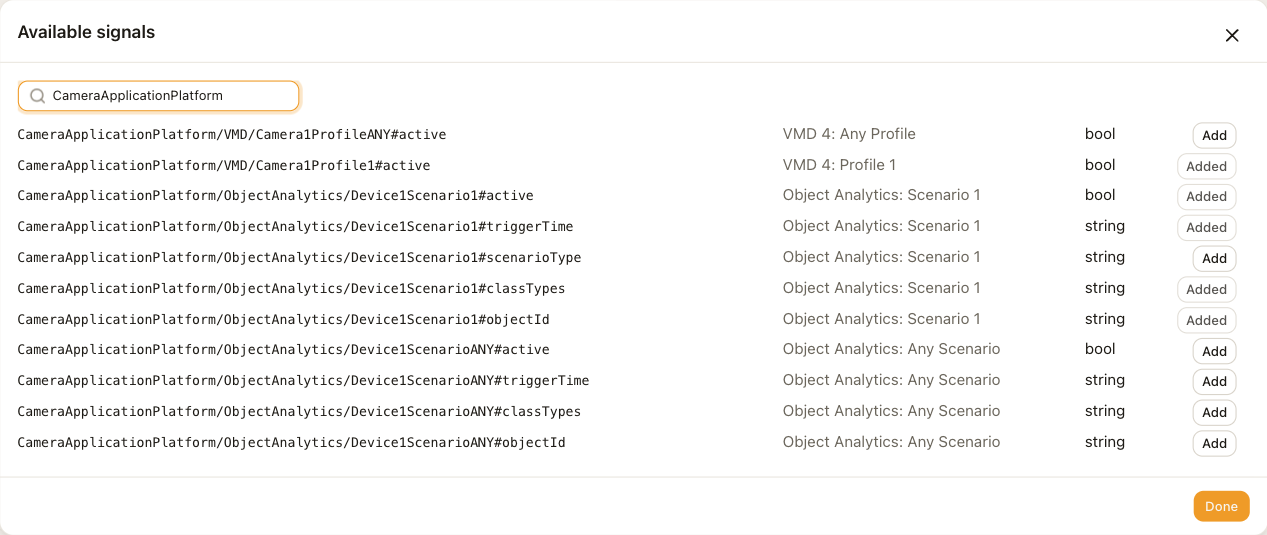
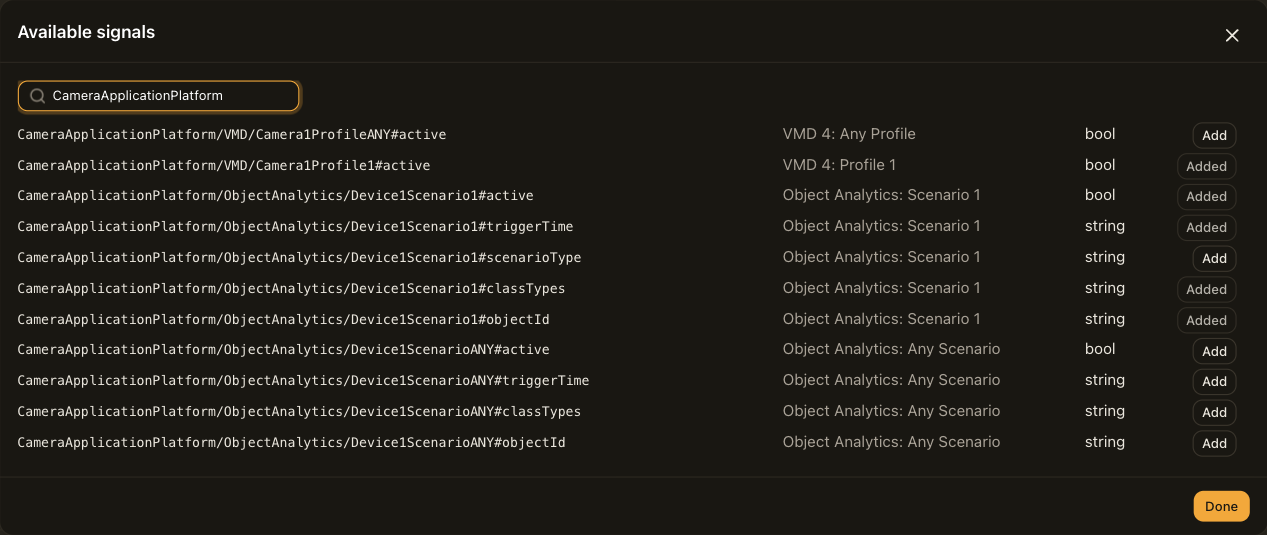
A scenario declares several fields and each one is a separate tag.
| Field | Type | Contents |
|---|---|---|
#active | bool | Whether the scenario is triggered right now. Recommended first tag. |
#classTypes | string | The object classes behind the last trigger, as the camera names them. |
#objectId | string | The camera's identifier for the object that last triggered the scenario. |
#triggerTime | string | When the scenario last triggered. |
#scenarioType | string | The scenario's type, which is fixed by its configuration. |
#active has a value as soon as the tag is added. The other fields receive a value when the scenario next triggers and read waiting for first event until then.
State map
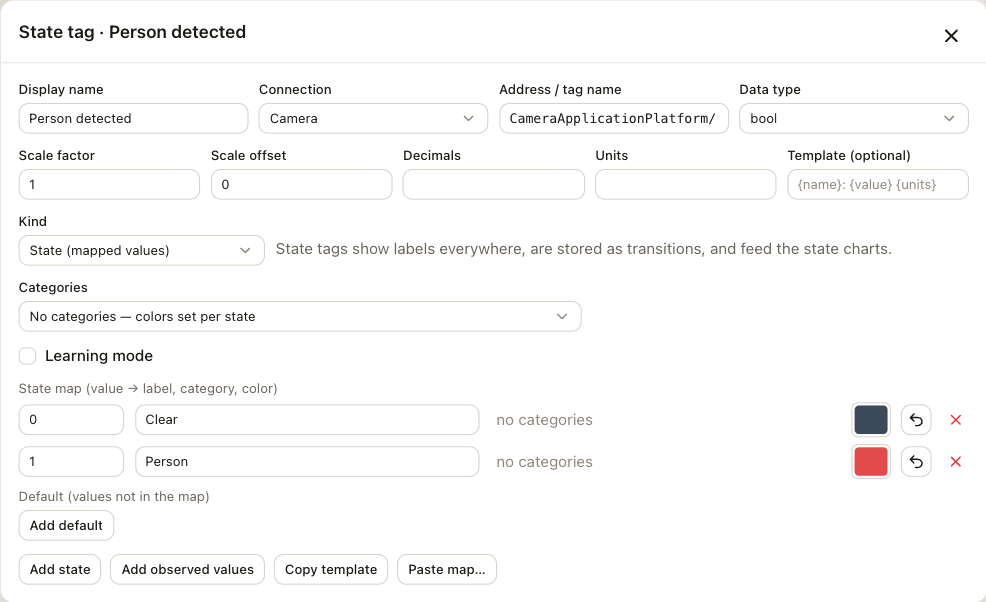
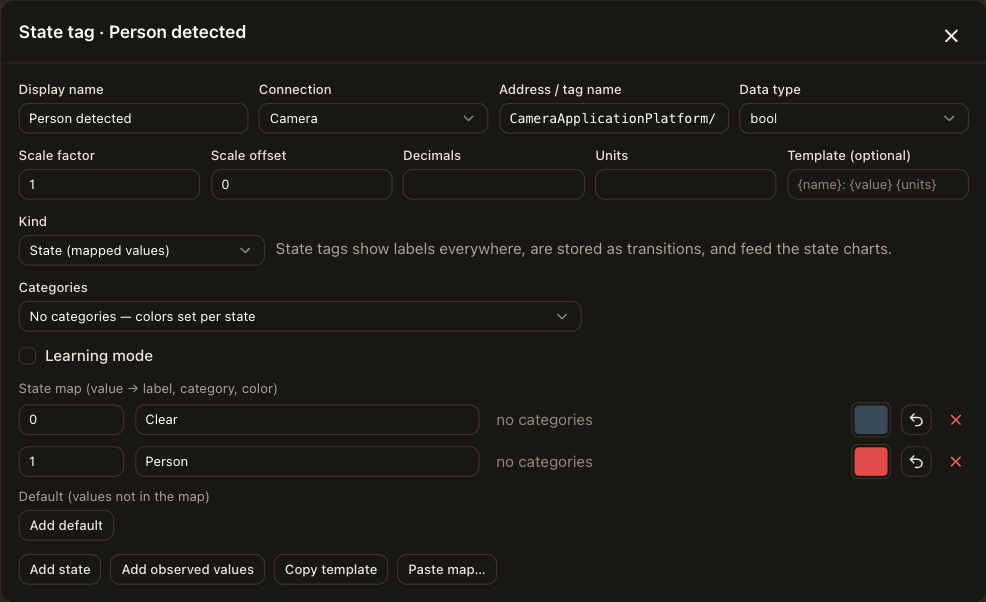
A detection tag is a bool. Set its Kind to State (mapped values) and map 0 and 1 to labels such as Clear and Person. Add observed values fills both rows once the camera has seen both values. See Tags.
Overlay
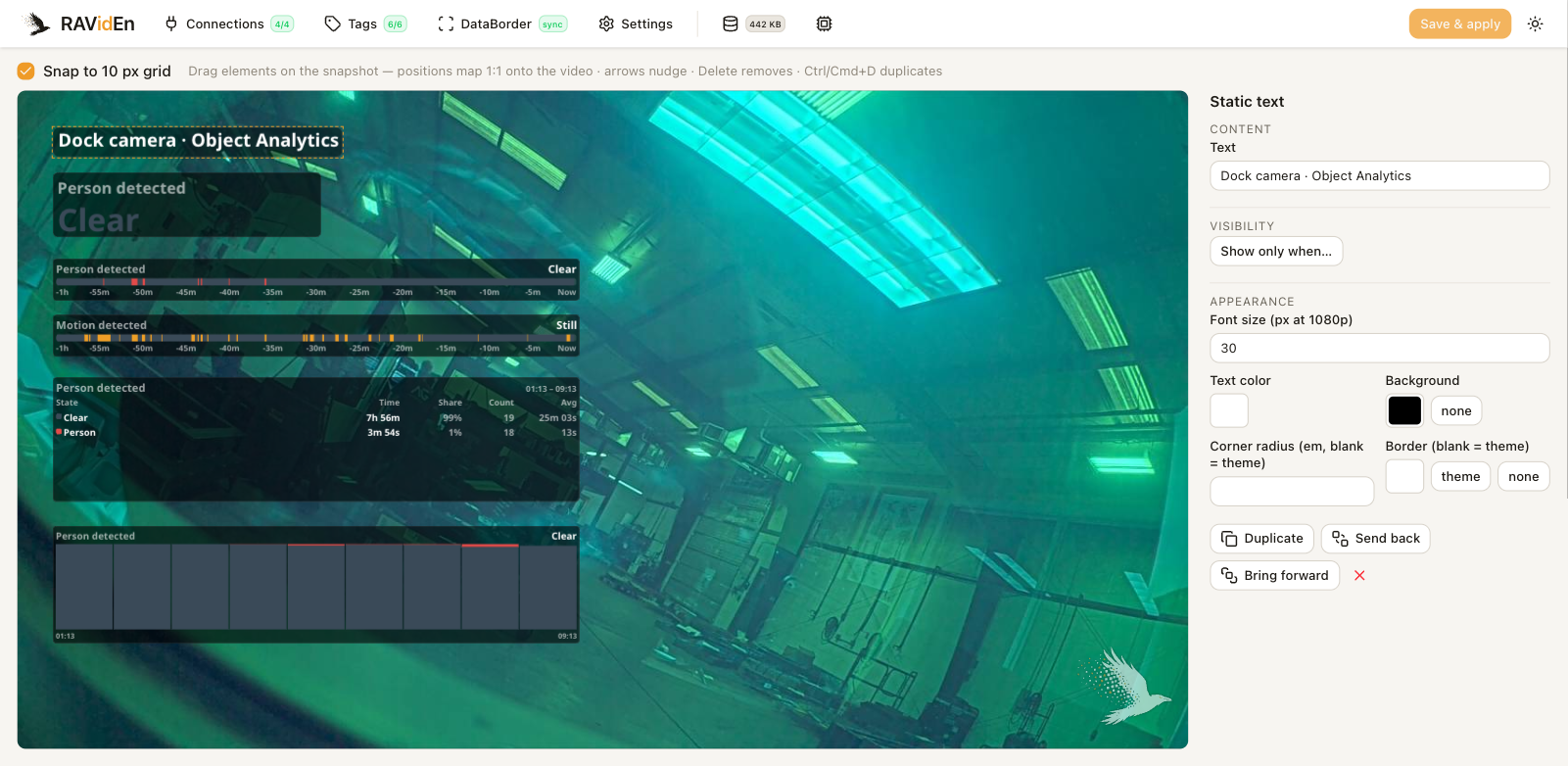
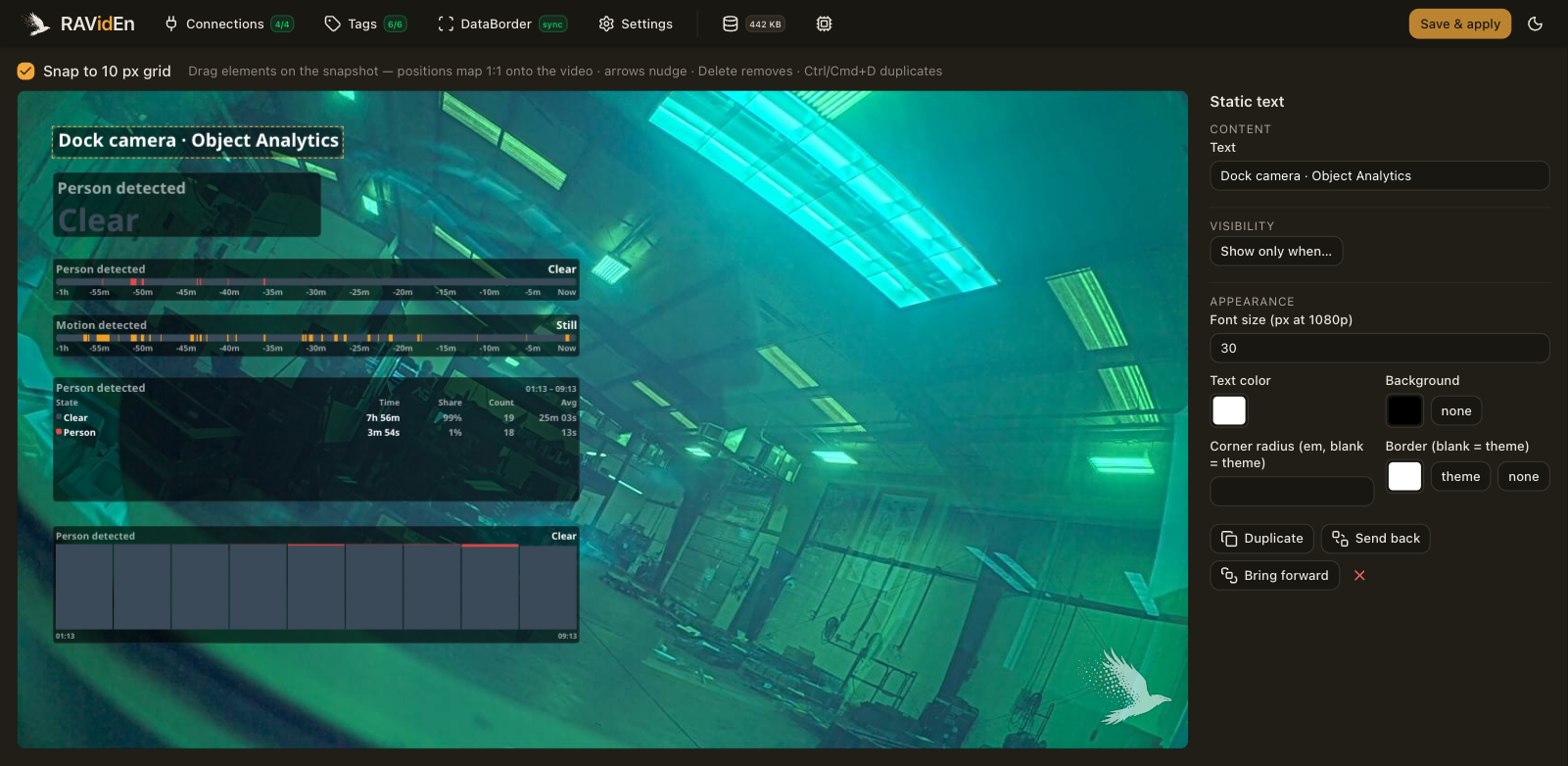
A detection is a state tag, so the state elements on the overlay apply: Current state, State strip, State table and Hourly bars. The object class is a string and goes on with a Tag value element. A visibility rule of detection equals 1 shows it only while something is in the area.
Detection and machine state
A derived state combines a detection with a controller tag. Choose Add derived state in the tag library and add rules; the first rule that matches wins.
- If the detection tag equals 1, the state is Attended.
- If the machine's state tag equals its down value, the state is Down unattended.
- Everything else falls to the else state, Running.
A donut over a shift then splits the downtime into attended and unattended. See Tags.
DataBorder
Add the detection tag as a record on the DataBorder page. A bool fits in a bit record. Pin the record so that a clip cut from the middle of a recording carries the state from its first frame.
Limitations
- The connection reports a scenario's verdict, not the scene. Bounding boxes, object positions and per-object tracks are not part of the camera's event system and do not reach RAVidEn.
- A detection shorter than one overlay redraw may not appear on the video. It is still in the history and in the DataBorder, which follow the poll interval.
- Some topics are shared by several sources. Every one of the camera's I/O ports reports on the same topic, so an address without a filter reads whichever port fired last. Add a source filter to pick one:
Device/IO/Port@port=1#state.
Troubleshooting
| Symptom | Check |
|---|---|
waiting for first event on #active | The analytics application is running on the camera's Apps page. |
| The tag never leaves its clear state, or flickers | The scenario's area, object types and short-lived-object filter. |
| The tag is not polled at all | Only used tags are polled. Put it on the overlay or in the DataBorder first. |